
Philips TV Remote
Mobile Tools ShopHouse & Home
4.4120.00 Reviews
- Version
- 1.0.25
- Installs
- 500.00K
- Age Rating
- Everyone
Screenshots
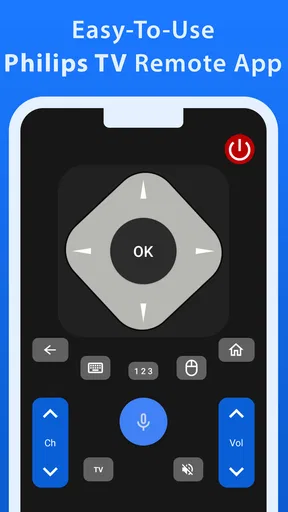
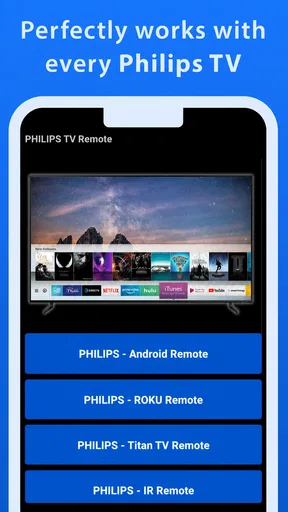
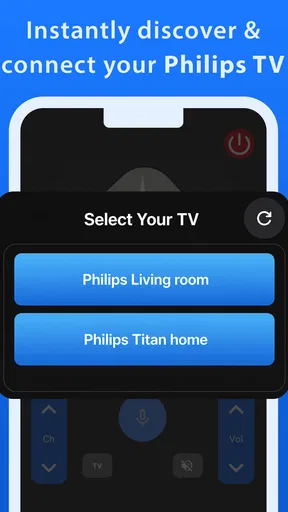
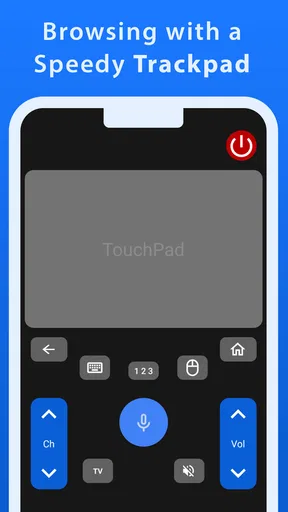
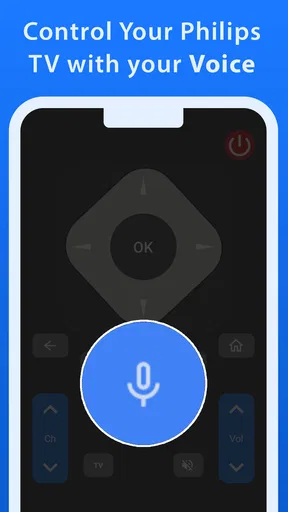
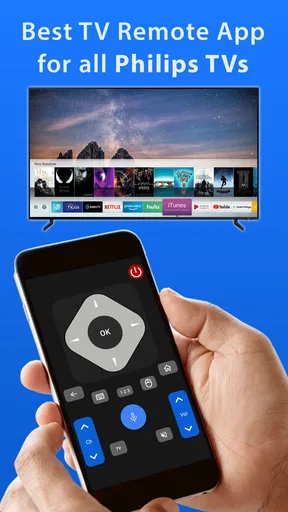
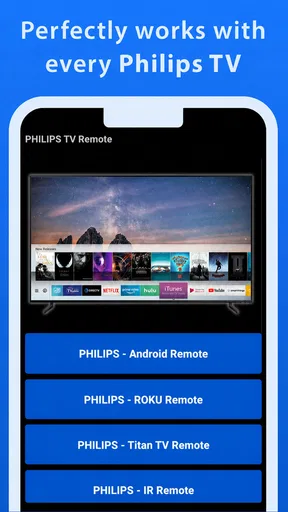
Our Review of Philips TV Remote
 Analysis by Appyee
In a shared living room, a phone can be a more dependable place to reach for than the remote wedged behind a cushion. I can see the appeal of Philips TV Remote most clearly when someone wants to make a quick adjustment without interrupting the evening to search for a controller. It turns a personal device into a way to operate a Philips TV, which is handy, but it also changes who has access to the controls: the phone owner now has them in hand.
One TV, several people, different habits
That shift matters in a household where people take turns choosing what to watch. If a remote goes missing, a phone-based control can be a useful fallback; if someone is already holding their phone, it may also make a small task such as changing the volume feel simpler. The benefit is practical rather than magical: the app can reduce dependence on a separate physical remote, but it does not make shared decisions about what to watch any easier.
I would treat it as an additional way to control the television, not as a household-wide replacement that everyone can automatically use. The phone and TV need to be on the same Wi-Fi network for the connection described by the app’s setup, so a person who is visiting or using a different network should not assume their phone will be ready to take over. In a shared home, checking that basic condition before settling in can avoid a scramble when the program is already starting.
Setup depends on the home network
The most useful setup habit is to connect the phone to the same network as the TV before trying to pair them. This is easy to overlook when a phone has switched networks or a household has more than one Wi-Fi name in use. I would also complete the initial connection while the TV is available and responsive, rather than waiting until the physical remote is nowhere to be found. A phone remote is most reassuring when it has already been connected and tested.
There is a trade-off here compared with a conventional remote: the app depends on a compatible Philips TV and a working network connection, whereas a physical controller does not need a phone to be on Wi-Fi. If the network is being restarted or the phone is unavailable, the app is not a substitute for having another way to operate the set. For a home that already has a reliable TV remote within reach, this is more of a convenience than a necessary replacement.
Useful for quick handoffs, not shared permissions
In everyday use, I would keep the phone owner in the loop when other people are watching. A quick volume change is one thing; changing channels or interrupting someone’s search is another. The app provides TV controls, so coordinating who is using them is a matter of household courtesy rather than a feature I would expect the software to manage. That distinction is worth keeping in mind when several people share a screen.
It also means I would not install it on a child’s phone simply to give them independent control without first deciding what that access should mean at home. The app’s age rating is Everyone, but that is not the same as a set of family controls or a way to manage viewing choices. For younger users, the relevant question is less about the label and more about whether a parent is comfortable with that phone being used to change the TV.
Who will appreciate it—and who may not
This is best suited to someone with a Philips Smart TV who often has their phone nearby and wants another way to handle basic television controls. It is less compelling for someone who prefers physical buttons, does not want to use a phone around the TV, or expects a remote app to work independently of the home network. People with a television from another brand should look for an option made for that set rather than assuming this app will control it.
Compared with a standard physical remote, the app’s appeal is having controls on a device that is already in your hand; the cost is relying on that device and the network. Compared with a general universal remote, its focus on Philips TVs may be a better fit for the intended television, but it is not a reason to expect it to operate unrelated equipment. I would keep the original remote available until I had confirmed that the app suits my own TV and routine.
Getting Started with the Philips TV Remote App
First things first, downloading and setting up the Philips TV Remote app is a breeze. Simply head over to the Google Play Store or Apple App Store, search for the app, and hit download. Once installed, the app guides you through a straightforward setup process to connect with your TV. Make sure your phone and TV are on the same Wi-Fi network, as this is crucial for the app to function correctly.
After the initial setup, the app automatically scans and connects to your Philips TV. Within moments, your smartphone becomes a fully functional remote. No more digging through the couch cushions!
Features That Stand Out
So, what does this app bring to the table? For starters, it includes all the basic remote control functions like volume control, channel switching, and power on/off. But it doesn’t stop there. The app is packed with features that make it a must-have for any Philips TV owner.
Easy Navigation: The app’s interface is intuitive and easy to navigate. Switching between different functions is smooth, and every button is clearly labeled.
Voice Control: One of the standout features is the voice control functionality. You can simply speak into your phone to change channels, adjust volume, or even search for specific shows. It’s like having a personal assistant for your TV!
Customizable Interface: You can tailor the app interface to your liking, adding or removing buttons based on your preferences. This customization ensures that you have quick access to your most-used functions.
Keyboard Input: Typing out long search queries using a traditional remote can be a hassle. With the app’s keyboard input feature, you can type directly from your phone, making searches faster and more efficient.
Performance and User Experience
In terms of performance, the app delivers a reliable and lag-free experience. Commands are executed almost instantaneously, so you won’t experience any frustration or delays. It’s like having an extension of your TV right in your pocket.
The app also receives regular updates, ensuring compatibility with the latest Philips TV models and adding new features based on user feedback. This ongoing development is a testament to the commitment of the developers to enhance user experience continuously.
One thing to note is that the app is designed specifically for Philips Smart TVs. If you own a different brand, you might want to look for other universal remote apps.
Fit, cost, and the practical trade-offs
Mobile Tools Shop is the developer behind this free House & Home app. It has an average rating of 4.4 from around 2,400 ratings, with about 92 written reviews, and has been installed over 100,000 times. Those figures suggest that plenty of people have tried it, but they cannot tell me whether it will connect to a particular television in a particular home. Compatibility and the shared-network requirement matter more than popularity when deciding whether it belongs in your routine.
The app is listed for Everyone and was released on May 3, 2016. Its current version is 1.0.12, and it requires Android 6.0 or later. It is free to install, with in-app purchases ranging from $0.99 to $22.99 per item. I would check what an optional purchase offers before paying, and I would not assume that buying anything will solve a connection or compatibility issue.
One small but useful way to judge the app is to test the controls you actually use, rather than stopping as soon as the TV appears in the scan. Try changing the volume, navigating a menu, and entering a short search while the physical remote is still nearby. That gives you a realistic sense of whether the phone is a comfortable backup, and it makes it easier to notice if a particular control is missing or awkward in your setup.
Keyboard input may be the feature that changes the experience most for people who search within TV menus. Instead of tapping through letters with directional buttons, you can type on the phone, which is especially useful for a title with a long name. I would still keep expectations modest: faster text entry helps with typing, but it does not decide which service or screen the TV should search, and it cannot make every search workflow identical.
Voice control is another convenience to try in the right setting, not a reason to abandon the other controls. In a quiet room, speaking a request may be quicker than navigating several menus. In a shared room, though, people may prefer not to say a search aloud, and a phone keyboard can be more discreet. I would use whichever input feels natural for the moment rather than treating voice as the default.
Small habits that make it more dependable
For a household with one TV and several potential users, a simple handoff routine helps: the person holding the phone makes the requested change, then passes control back conversationally instead of assuming everyone can operate it. This is not a special app feature; it is a practical way to avoid competing commands when more than one person wants to direct the screen. If a guest needs to adjust something, it may be easier for the owner to make the change than to spend the start of a visit setting up another phone.
I would also avoid relying on the app as the only control during a planned viewing session. Check the connection beforehand, keep the ordinary remote somewhere predictable, and use the phone app as a convenient alternative. That approach is particularly sensible if the household uses the phone for other things at the same time: a call, a low battery, or simply handing the device to someone else can make a dedicated remote more practical.
There is also a privacy and comfort boundary to consider. Voice input means speaking toward a phone while using the TV, so anyone uneasy about doing that can stick to buttons or keyboard entry. The useful point is not to presume that every person in the room wants the same control method. A family can agree on who changes channels or searches without expecting the app itself to enforce those preferences.
Where it sits among the alternatives
The usual alternatives are the physical Philips remote, a compatible universal controller, or another remote app intended for the television. The physical remote remains the straightforward choice for tactile buttons and independence from a phone’s network connection. A universal controller may make more sense for someone trying to operate several pieces of equipment from one handset, while this app is most relevant when the target is a Philips Smart TV and phone-based controls are welcome.
I would be cautious about treating “universal” as a promise that one app can handle every television and connected device. The practical question is whether the exact TV in the room can be found and controlled with the functions you need. If your main priority is a dependable button press from across the room, choose a physical remote; if typing searches from your phone sounds useful, this app has a clearer advantage.
For an older relative or a visitor who is not comfortable using a smartphone as a controller, a physical remote may be easier to explain and hold. For someone who already uses a phone constantly, the app can reduce the number of objects to keep track of. Neither choice is universally better: the best one depends on who shares the TV and whether the network-based setup fits the way that household uses it.
Final Thoughts
In conclusion, the Philips TV Remote app is a game-changer for anyone looking to streamline their TV viewing experience. Its user-friendly design, combined with advanced features like voice control and customizable interfaces, make it a standout choice in the crowded realm of remote control apps. Whether you’re a tech enthusiast or just someone who loves convenience, this app is definitely worth a try.
So, if you’re tired of hunting for your remote or juggling multiple controllers, give the Philips TV Remote app a shot. It might just become your new favorite TV accessory. And hey, you’ll always know where your remote is—right there on your smartphone!
Verdict
Strengths of Philips TV Remote
- Intuitive user interface for easy navigation.
- Seamless connectivity with Philips TVs.
- Customizable remote settings.
- Supports multiple devices simultaneously.
- Voice control integration enhances usability.
Limitations of Philips TV Remote
- Limited compatibility with non-Philips TVs.
- Occasional connectivity issues.
- Requires a stable internet connection.
- In-app ads can be intrusive.
- Limited support for older TV models.
Other Releases by Mobile Tools Shop
View All
Hisense TV Remote
House & Home3.9
Similar Picks in This Category
View All
Universal TV Remote Control
CodeMatics Media Solutions3.9

AlfredCamera Home Security app
Alfred Systems Inc.4.7

Planner 5D: AI Home Design
Planner 5D4.5

Universal Tv Remote-Cast to TV
One Music Player4.1

Zillow: Homes for Sale & Rent
Zillow Group4.8

99acres Buy/Rent/Sell Property
infoedge.com4.3
Frequently Asked Questions
What devices are compatible with the Philips TV Remote app?
The Philips TV Remote app is designed to work with most Philips Smart TVs released after 2015. It is compatible with both Android and iOS devices, ensuring a seamless connection through your home Wi-Fi network. Always check your TV's user manual or the app's compatibility list for specific model support.
How do I connect my device to the Philips TV using the app?
To connect your device, ensure both your smartphone and Philips TV are connected to the same Wi-Fi network. Open the app, and it should automatically detect your TV. Follow the on-screen instructions to pair your device, which may involve entering a code displayed on your TV screen to complete the setup.
What features does the Philips TV Remote app offer?
The app provides a variety of features including the ability to change channels, adjust volume, and navigate menus, all from your smartphone. Additionally, it offers a keyboard for easier text input, access to smart TV apps, and the ability to stream content from your device directly to the TV for an enhanced viewing experience.
Is the Philips TV Remote app free to use?
Yes, the Philips TV Remote app is free to download and use. However, it requires a compatible Philips Smart TV and an active Wi-Fi connection. While the app itself is free, some features may require your TV to have the latest firmware updates for optimal functionality.
What should I do if the app fails to connect to my TV?
If the app fails to connect, first ensure both your TV and smartphone are on the same Wi-Fi network. Restart both devices and relaunch the app. Check for any available updates for both the app and your TV's firmware. If issues persist, consult the app’s support page or contact Philips customer service for further assistance.
